








Extensions are small programs that can be added to interact with Kstars/Ekos/INDI in order to provide extra functions and features.
Note
Extensions are separate from Kstars/Ekos/INDI. They are not provided as part of this software. Only a means to call them is provided for convenience. Make sure that you understand the requirements and risks of using an extension.
Requirements
Each extension must consist of at least 2 files, with an optional third icon file.
The program file. This is any executable file that will run on the users system. The user under which KStars is running must have execute permission on this file.
The configuration file. This is a plain text file that defines the required and optional inputs for the extension. It must be named the same as the extension executable with the addition of a .conf file name extension.
It is mandatory that the configuration file contains a line starting with minimum_kstars_version=n.n.n where n.n.n is the lowest version of KStars that supports the extension e.g. 3.7.3
Optionally (and non-preferred) the configuration file may contain a line starting with runDetached=true. If present this line makes the extension run independently from KStars. Once it has been started the extension can not pass status information back to Ekos. This should only be used by extensions that are required to continue to run after KStars has closed. The extension must also provide its own user interface.
Additionally the configuration file can contain any other parameters that the extension author decides and free text.
The icon file, if present, must be named the same as the extension executable with the addition of the appropriate file name extension for the image format, .jpg, .bmp, .gif, .png and .svg are supported. If provided this icon will be used in the extension selection ComboBox. If an icon is not provided a default icon will be used instead.
All files of the extension (executable, configuration, and optional icon) must be copied into the KStars writable data location /extensions e.g. ~/.local/share/kstars/extensions
Extensions that are present, have a valid configuration file, and have a minimum KStars version no higher than the current installation will be detected when Ekos is started. If there are no valid extensions detected the extension UI element will not be displayed. The extension UI elements are a ComboBox showing the name and icon of each detected extension, and a start/stop button. If the extension fails to close within 10 seconds of the stop button being clicked, it becomes re-enabled as an abort button that will force close the extension. Only one extension can be used at a time.
Development
The following describes additional points for developers of extensions.
Some extension sources including an example skeleton extension are available in the KStars Extension Github
Each extension must check for the existence and validity of its own configuration file. The minimum_kstars_version configuration file entry must be checked against an internal reference to confirm that the configuration file matches the extension requirements. See the skeleton example.
The calling KStars version is passed to the extension as arg(1) in the launching QProcess call.
All interaction with KStars/Ekos/INDI should be via the DBus interface. See the skeleton example. Useful tools for interrogating, monitoring and understanding DBus include D-Feet and Bustle
It may appear on initial investigation that using the Qt DBus Adaptors system would be much easier than direct use of the Qt DBus Interfaces/Messages and KStars does provide the required xml definitions. However currently there is heavy use of custom types, the definitions of which are combined with other information in the KStars sources. This results in a large set of files from KStars that require inclusion within an extension in order to make use of the Qt DBus Adaptors. Hopefully this will be addressed in the future.
AI Assistant (MCP)
Introduction
Ekos embeds a Model Context Protocol (MCP) server. MCP is an open standard that lets AI assistants and agents discover and call tools exposed by an application. With the MCP server enabled, an AI assistant can observe your rig — connection status, mount position, the last captured image — and, if you allow it, operate the mount and focuser, resolve catalog targets, and more.
Any MCP-capable client can consume the server out of the box: it speaks standard JSON-RPC 2.0 over HTTP, with the usual initialize, tools/list and tools/call methods. No KStars-specific client code is required.

Enabling the Server
The server is configured in the Ekos settings dialog, in the MCP tab.
Check Enable MCP server to start it. The server starts automatically with Ekos whenever this option is enabled.
Port selects the TCP port to listen on. The default is 8765; any port between 1024 and 65535 may be used.
The status LED next to the port shows whether the server is currently listening.
Note
The server only listens on the local machine (127.0.0.1). It is not reachable from the network. To use it from another machine, you need to set up your own tunnel (for example an SSH port forward) and understand the security implications of doing so.
Authentication and Tokens
Every request must carry a bearer token. Two tokens are managed in the MCP tab, each with show, copy and Regenerate buttons:
The Token field holds the full-access token. Clients presenting it can call every enabled tool.
The Read-only token field holds a separate token restricted to read-only tools. Give this one to assistants that should observe the rig but never move hardware.
Tokens are stored in your system keychain (under the service name kstars), never in plain-text configuration files. Regenerating a token immediately invalidates the previous one.
To connect a client, point it at http://127.0.0.1:8765/mcp and pass the token as a standard HTTP bearer credential. Requests are JSON-RPC 2.0 messages sent with POST. For example, calling the ekos_status tool with curl:
curl -s http://127.0.0.1:8765/mcp \
  -H "Authorization: Bearer <your token>" \
  -H "Content-Type: application/json" \
  -d '{"jsonrpc": "2.0", "id": 1, "method": "tools/call",
       "params": {"name": "ekos_status", "arguments": {}}}'
The response is a JSON-RPC envelope whose result carries the tool output — here the INDI connection state, the active profile, and the connected devices.
A Server-Sent Events stream is available at /mcp/stream. Each connection is rate-limited to 60 requests.
Safety Controls
Warning
A full-access token allows an AI agent to move your mount and focuser. On a live rig, treat that token like a password: prefer the read-only token whenever observation is enough, and review which tools are enabled before handing control to an agent.
Three mechanisms limit what a connected client can do:
Read-only mode (refuse rig control tools). When checked, the server refuses every mutating tool for all clients, regardless of which token they present.
The read-only token. Clients authenticating with it can only call tools marked read-only, even when read-only mode is off.
The Available tools tree. Every tool the server exposes is listed here, grouped by family, with a checkbox per tool and per family. Unchecked tools are hidden from clients entirely: they disappear from
tools/listand calls to them are rejected.
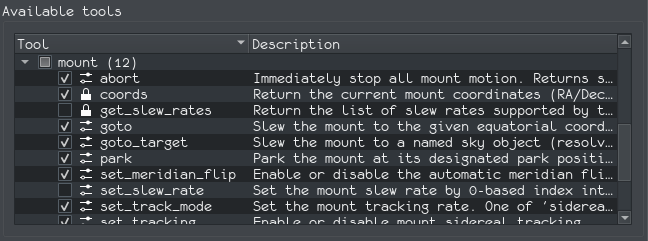
In the tree, a lock icon marks read-only tools and a gear icon marks tools that change the state of the rig. Tooltips also indicate tools whose effect is hard to undo (such as mount_sync), following the annotation hints of the MCP specification.
Tool Reference
The tables below list the tools currently shipped with KStars. The Access column shows read for tools that only observe the rig and control for tools that change its state.
Ekos Status
Tool
Purpose
Access
ekos_status
Current INDI/Ekos connection status, active profile, and connected device names.
read
Catalog
Tool
Purpose
Access
catalog_search
Search the KStars catalogs by name. Returns matching objects with canonical names, types, J2000 coordinates and magnitudes. Supports substring or exact match, a type filter, and a magnitude limit. Use it to resolve a name like “M42” to the canonical “M 42” before slewing.
read
Mount
Tool
Purpose
Access
mount_coords
Current RA/Dec, Alt/Az, hour angle, pier side and tracking status.
read
mount_get_slew_rates
List the slew rates supported by the driver and the currently selected one.
read
mount_goto
Slew to equatorial coordinates (RA in hours, Dec in degrees).
control
mount_goto_target
Slew to a named object, resolved by KStars (canonical name, e.g. “M 42”).
control
mount_sync
Sync the mount pointing model to the given coordinates. Hard to undo — a wrong sync corrupts the pointing model.
control
mount_park / mount_unpark
Park the mount at its park position, or unpark it for operation.
control
mount_abort
Immediately stop all mount motion.
control
mount_set_tracking
Enable or disable sidereal tracking.
control
mount_set_track_mode
Select the tracking rate: sidereal, lunar, solar or custom.
control
mount_set_slew_rate
Select a slew rate by index into the driver’s list.
control
mount_set_meridian_flip
Enable or disable the automatic meridian flip and set its hour-angle offset.
control
Focuser
Tool
Purpose
Access
focuser_status
Focuser name, current and maximum position, and capability flags. An optional name parameter selects a device on multi-focuser rigs; all focuser tools accept it.
read
focuser_move_absolute
Move to an absolute step position, validated against the driver’s maximum. Must not be called while Ekos autofocus is running.
control
focuser_move_relative
Move by a signed number of steps (positive outward, negative inward; direction is driver-dependent). Must not be called while Ekos autofocus is running.
control
focuser_abort_move
Stop any in-flight focuser motion.
control
Image Access
These tools see frames from every producer: the Capture queue, Focus, Align, polar alignment, and ad-hoc captures. On a multi-camera rig, an optional camera parameter selects a device; by default the most recent frame across all cameras is returned.
Tool
Purpose
Access
image_last_info
Metadata of the most recently captured frame: file path, camera, exposure, filter, target, timestamp, sensor temperature, HFR, star count and dimensions.
read
image_last_thumbnail
A base64-encoded JPEG preview of the most recent frame, sized for vision-capable models (default 512 pixels on the long edge, at most 1024).
read
0 comments:
Post a Comment