







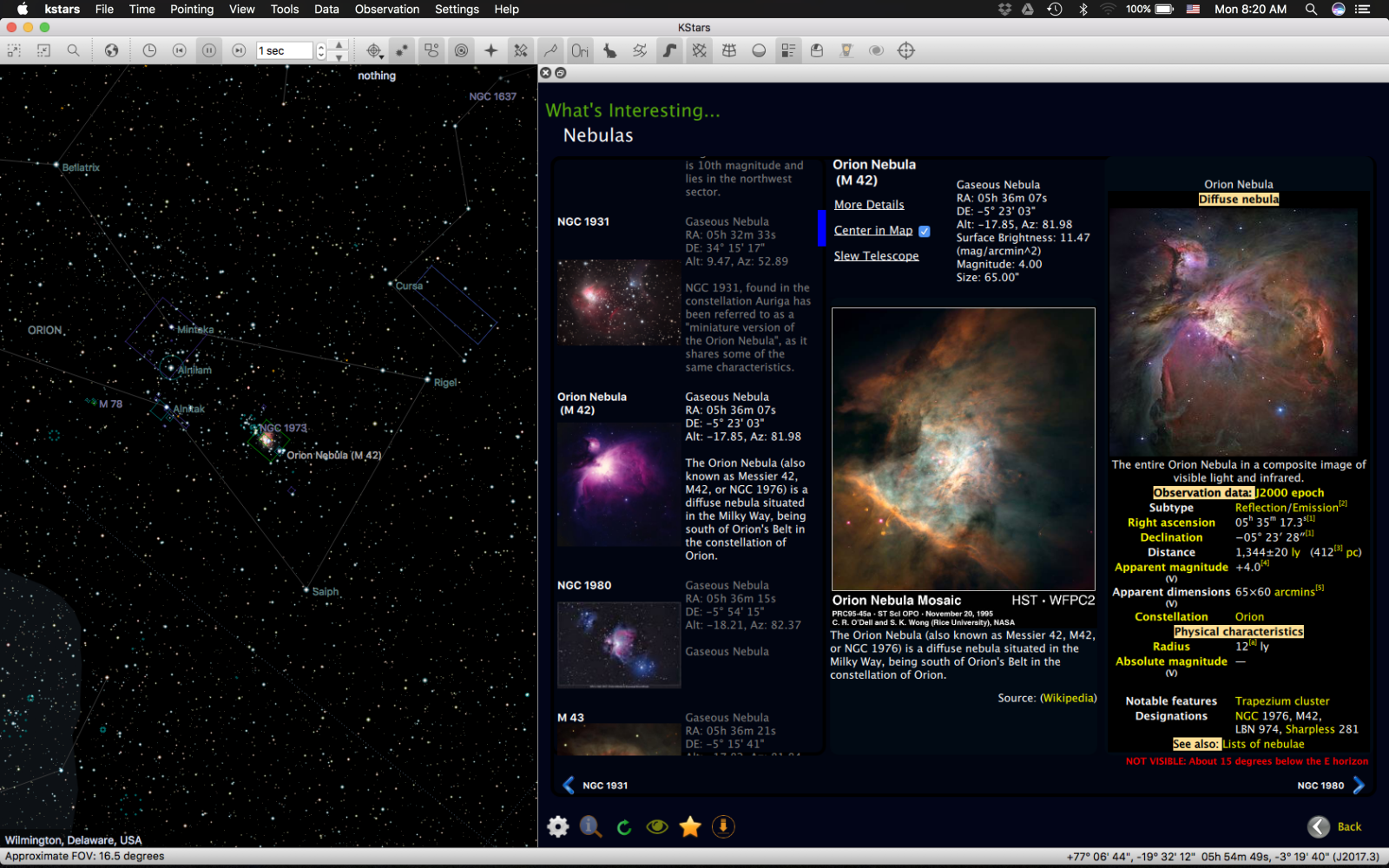
KStars is a particularly capable free/open-source astronomy application: it combines a planetarium, observation planner, astronomical calculators, extensive catalogs, and—through Ekos + INDI—a complete telescope and astrophotography control environment.
As of October 2026, the current KStars release is 3.8.4, released August 9, 2026.
1. Download KStars
Use the official KDE KStars download page:
KStars official download page
It provides installers for Windows, macOS, and Linux.
Windows
KStars currently provides a 64-bit installer for Windows 10 or later.
KStars for Windows
Download the installer, run it, and follow the normal Windows installation wizard.
macOS
KStars provides a 64-bit installer for macOS 10.15 and later.
KStars for macOS
Install it like other macOS applications. If you are security-conscious, the KDE download page also provides SHA-256 verification information.
Linux
Linux users have several possibilities depending on distribution. KDE provides a Flatpak-based distribution as well as instructions for using distribution packages. The stable Flatpak is the sensible choice for most users; KDE also provides a nightly/development build for people who specifically want the latest development version.
KStars for Linux
For a normal astronomy setup, I'd use stable, not nightly.
2. First launch: configure the basics
When you first start KStars, don't immediately worry about Ekos and telescope drivers. Get the virtual planetarium working correctly first.
Set your location
Your geographical location is important because KStars uses it to calculate what is above your horizon.
Look for the geographic location settings and enter:
-
Latitude
-
Longitude
-
Elevation
-
Location name
For an observing site, use the actual observing location rather than simply the nearest city when practical.
This affects sunrise/sunset, planetary positions relative to your horizon, rise/set times, and observation planning.
Check date and time
KStars can simulate the sky at arbitrary dates and times. Make sure your computer's clock and time zone are correct.
This becomes particularly important once you connect a telescope: telescope mounts also need correct time, date, latitude, longitude, and UTC offset. KStars' documentation specifically identifies incorrect time/date and location information as common causes of telescope positioning problems.
3. Configure the sky display
KStars has a huge amount of information available, so the default display can initially seem overwhelming.
I'd start with a relatively simple configuration.
Useful things to enable or adjust include:
-
Constellation lines
-
Constellation names
-
Star names
-
Planet labels
-
Deep-sky object labels
-
Horizon
-
Cardinal directions
-
Coordinate grids
Then experiment with the magnitude limit.
A higher limiting magnitude displays more faint stars but can make the screen considerably more cluttered.
KStars can ultimately display up to 100 million stars and approximately 10,000 deep-sky objects, along with planets, comets and asteroids.
4. Install additional astronomical catalogs
One of KStars' strengths is that you don't have to restrict yourself to the basic object database.
Additional catalogs include resources such as:
-
OpenNGC
-
Revised NGC/IC
-
Abell planetary nebulae
-
Sharpless H II regions
-
Hickson Compact Groups
-
Lynds' Dark Nebulae catalog
The current KStars catalog repository documents these and other available catalogs.
KStars catalog documentation
Don't install every catalog immediately. Start with the standard catalogs and add specialized ones when you actually need them.
5. Configure the Observation Planner
If your goal is visual astronomy, the Observation Planner is one of the most useful parts of KStars.
You can create an observing list containing objects such as:
-
Messier objects
-
NGC/IC objects
-
Planets
-
Double stars
-
Nebulae
-
Galaxies
-
Star clusters
KStars can then help determine when objects are observable and organize an observing session. It can also download DSS imagery for offline comparison at an observing site.
For example, you could create a session for:
Saturday evening → 20:00–02:00 → southern sky → galaxies + nebulae
and use KStars to determine which targets make sense during that period.
6. If you're using a telescope: configure INDI
This is where KStars becomes much more powerful.
INDI is the hardware-control layer that allows KStars/Ekos to communicate with astronomical equipment.
It can handle devices including:
-
Telescope mounts
-
Cameras
-
Focusers
-
Filter wheels
-
Guiders
-
Domes
-
Other observatory equipment
KStars maintains a substantial list of INDI-supported equipment.
KStars supported INDI devices
Create an equipment profile
Open Ekos and create a profile for your equipment.
For example:
Profile: Backyard Telescope
-
Mount: your mount's INDI driver
-
Primary camera: your astronomy camera
-
Guide camera: your guide camera
-
Focuser: your electronic focuser
-
Filter wheel: your filter wheel
-
Location: your observing site
KStars can also run an INDI server remotely, which is useful for a Raspberry Pi or dedicated observatory computer.
7. Configure Ekos for astrophotography
Ekos is the astrophotography system built into KStars.
It provides a workflow covering things such as:
7. Configure Ekos for astrophotography
It provides a workflow covering things such as:
-
Equipment connection
-
Polar alignment
-
Plate solving/alignment
-
Focusing
-
Guiding
-
Image capture
-
Filter management
-
Scheduling
-
FITS image inspection
KStars describes Ekos as a complete astrophotography workflow rather than merely a telescope-control interface.
A typical imaging setup might look like:
KStars → Ekos → INDI → Mount + Camera + Focuser + Guide Camera + Filter Wheel
That architecture is one of the reasons KStars is capable of functioning as the central control program for an automated observatory.
8. Configure your camera
If you're doing astrophotography, configure the imaging camera in Ekos/INDI.
You'll typically want to establish:
-
Camera driver
-
Capture format
-
Image directory
-
Exposure settings
-
Gain/ISO where applicable
-
Cooling temperature if the camera supports cooling
-
Binning
-
Frame type
KStars' INDI camera system supports operations such as exposure control, temperature control, binning and different frame types; Ekos' Capture module is intended for sequencing images.
Image storage
Create a dedicated directory structure before starting automated imaging.
For example:
Astrophotography/
├── 2026-10-03/
│   ├── M31/
│   ├── M42/
│   └── Calibration/
├── 2026-10-04/
└── 2026-10-05/
This makes large imaging sessions much easier to manage later.
9. Configure your mount carefully
This is one area where accuracy matters.
Make sure the mount's:
-
Latitude
-
Longitude
-
Date
-
Time
-
UTC offset
-
Hemisphere
-
Alignment mode
are correct.
KStars specifically notes that incorrect alignment mode, time/date, geographical coordinates, UTC offset, cabling, or power can cause mount-control problems.
For a German equatorial mount, also make sure the physical mount is properly polar aligned before expecting accurate GoTo performance.
10. Configure your focuser
If you have a motorized focuser, add its INDI driver to the Ekos profile.
Ekos can perform automatic focusing by analyzing stars in the image; supported focusers can use absolute positioning, while autofocus can also work with focusers without positional feedback by analyzing star measurements such as HFR.
A useful workflow is:
Slew → focus → plate solve → center → guide → capture
rather than trying to automate everything immediately.
11. Configure plate solving
Plate solving allows KStars/Ekos to determine where the telescope is actually pointing from an image of the sky.
This is extremely useful for astrophotography because a mount's mechanical pointing isn't necessarily precise enough to put a faint target exactly where you want it.
It enables workflows such as:
Slew to M31 → take image → identify stars → determine coordinates → correct mount → center M31
This is one of the key features that turns KStars from a planetarium into an observatory-control system.
12. Start with the simulator
If you're new to KStars/Ekos, there's an important trick:
You don't need a telescope to learn Ekos.
KStars/INDI provides simulator drivers, allowing you to experiment with the equipment-control workflow without risking your actual hardware. The official documentation lists simulator support alongside the real device drivers.
I strongly recommend this progression:
Stage 1 — Planetarium
Learn:
-
Sky navigation
-
Object search
-
Coordinates
-
Time simulation
-
Observation Planner
Stage 2 — Ekos simulator
Learn:
-
Equipment profiles
-
Mount control
-
Camera control
-
Capture sequences
-
Focusing
-
Guiding
-
Scheduling
Stage 3 — Real equipment
Connect:
-
Mount
-
Camera
-
Guide camera
-
Focuser
-
Filter wheel
and test each device individually.
Stage 4 — Automated imaging
Only after everything works manually should you build an automated Ekos schedule.
13. A good first configuration
If you simply want KStars for astronomy rather than astrophotography, I'd configure it like this:
Setting
Recommendation
Location
Your actual observing site
Time
Correct local time/time zone
Stars
Moderate magnitude limit initially
Constellations
On
Horizon
On
Coordinates
Equatorial + horizontal as needed
Catalogs
Default first; add specialized catalogs later
DSS images
Enable when useful
Observation Planner
Configure
Ekos
Leave alone initially
INDI
Only configure when you have equipment
If you're building an astrophotography setup, add Ekos + INDI after you've mastered the planetarium side.
Official resources
-
KStars home page — overview and features.
-
Download KStars — Windows, macOS, Linux and source downloads.
-
KStars user documentation — manuals and KDE documentation.
-
INDI equipment support — supported astronomical hardware
-
KStars catalog documentation — additional astronomical catalogs.
The simplest way to think about it
KStars = the sky and astronomy environment
INDI = the hardware communication layer
Ekos = the astrophotography/observatory automation system
So a complete setup can be:
KStars → Ekos → INDI → telescope + camera + focuser + guider → automated imaging
That is the part of KStars worth learning if your eventual goal is serious astrophotography rather than simply using it as a desktop planetarium.
0 comments:
Post a Comment