








KStars provides a simple yet powerful layer for remote device control. A detailed description of the layer is described in the INDI white paper.
You need to configure both the server and client machines for remote control:
Server: To prepare a device for remote control, follow the same steps in the local/server setup. When you start a device service in theDevice Manager, a port number is displayed under thePortcolumn. In addition to the port number, you also need the hostname or IP address of your server.
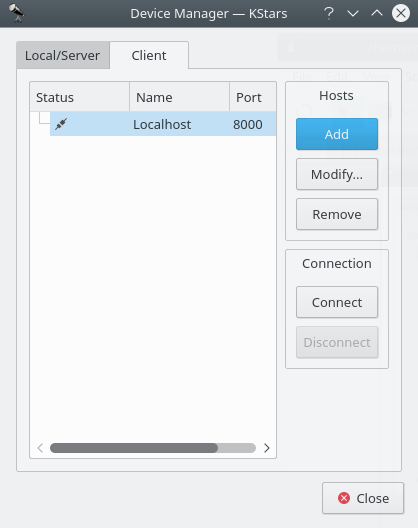
Client: Select theTools→Devices→Device Manager...menu item and you can add, modify, or delete hosts intoClienttab. Add a host by clicking on theAddbutton. Enter the hostname/IP address of the server in theHost: field, and enter the port number obtained from the server machine in step 1.
After you add a host, right click on the host to
ConnectorDisconnect. If a connection is established, you can control the telescope from theSky maporINDI Control Panelexactly as described in the local/server section. It is as easy at that.
Running an INDI server from the command line
While KStars allows you to easily deploy an INDI server; you can launch an INDI server from the command line.
Since INDI is an independent backend component, you can run an INDI server on a host without KStars. INDI can be compiled separately to run on remote hosts. Furthermore, device drivers log messages to
stderrand that can be helpful in a debugging situation. The syntax for INDI server is as following:$ indiserver [options] driver [
driver…]Options: -l d : Log driver messages to <d>/YYYY-MM-DD.islog -m m : Kill client if gets more than this many MB behind, default 128. -d m : Drop streaming blobs if client gets more than this many MB behind, default 5. 0 to disable. -p p : Alternate IP port, default 7624. -r r : Maximum driver restarts on error, default 10. -f path : Path to fifo for dynamic startup and shutdown of drivers. -v : Show key events, no traffic. -vv : -v + key message content. -vvv : -vv + complete xml. driver : Executable or [device]@host[:port]For example, if you want to start an INDI server running an LX200 GPS driver and listening to connections on port 8000, you would run the following command:
$ indiserver -p 8000
lx200gps
Secure Remote Operation
Suppose we want to run an indiserver with INDI drivers on a remote host,
remote_host, and connect them to KStars running on the local machine.From the local machine log onto the remote host,
remote_host, by typing:$ ssh -L
local_port:remote_host:remote_portThis binds the
local_porton the local machine to theremote_porton theremote_host. After logging in, run indiserver on the remote host:$ indiserver -p
remote_port[driver…]Back on the local machine, start KStars then open the
Device Managerand add a host under theClienttab. The host should be the local host (usually 127.0.0.1) and the port number should be thelocal_portused in the steps above. Right-click on the host and selectConnectfrom the popup menu. KStars will connect to the remote INDI server securely. The host information will be saved for future sessions.
What is INDI?
INDI is the Instrument-Neutral-Distributed-Interface control protocol developed by Elwood C. Downey of ClearSky Institute. KStars employs device drivers that are compatible with the INDI protocol. INDI has many advantages including loose coupling between hardware devices and software drivers. Clients that use the device drivers (like KStars) are completely unaware of the device capabilities. In run time, KStars communicates with the device drivers and builds a completely dynamical GUI based on services provided by the device. Therefore, new device drivers can be written or updated and KStars can take full advantage of them without any changes on the client side.
Do you plan to support more devices?
Yes. We plan to support major CCD cameras and focusers and extend support for more telescopes. If you would like INDI to support a particular device, please send an email to indi-devel@lists.sourceforge.net
What operations does KStars provide to control the telescope?
It depends on the particular telescope you’re running, but the minimum three operations are Slew, Track, and Sync, which you can issue directly from the sky map. Your telescope must be aligned for those operations to perform correctly. Some telescopes offer you more operations like site management, slew modes, focusing, parking, and more. You can access the telescopes extended features from the Tools → Devices → INDI Control Panel... menu item.
What’s the difference between Slew, Track, and Sync exactly?
The command Slew orders the telescope to move to a particular target, and once the telescope reaches its target, the telescope keeps tracking that target at a sidereal rate (i.e., the rate at which stars move across the sky). This works well for stars, Messier objects, and about everything outside our solar system. But solar system objects travel differently across the sky and so the telescope must Track the objects as they move.
Therefore, you need to issue a track command if you want to track an object with non-sidereal motion. On the other hand, Sync is used to synchronize the telescope’s internal coordinates with that of an object you select.
Can I control my telescope remotely?
Yes. You can start an INDI server on the machine connected to your telescope and the server will listen to requests from KStars clients. Once you’re connected, you can control your telescope directly from the sky map. This procedure is described in detail in the Remote device control section.
When I try to Connect, KStars reports that the telescope is not connected to the serial/USB port. What can I do?
This message is triggered when KStars cannot communicate with the telescope. Here are few things you can do:
Check that you have both reading and writing permission for the port you are trying to connect to.
Check the connection cable, make sure it is in good condition and test it with other applications.
Check your telescope power, make sure the power is on and that the telescope is getting enough power.
Select the
Tools→Devices→INDI Control Panel...menu item and set the correct port in theINDI Control Paneldialog. The default device is/dev/ttyS0Restart KStars and retry again.
KStars reports that the telescope is online and ready, but I cannot find the telescope’s crosshair, where is it?
KStars retrieves the telescopes RA and DEC coordinates upon connection. If your alignment was performed correctly, then you should see the crosshair around your target in the Sky Map. However, the RA and DEC coordinates provided by the telescope may be incorrect (even below the horizon) and you need to Sync your telescope to your current target. You can use the right-click menu to center and track the telescope crosshair in the sky map.
The telescope is moving erratically or not moving at all. What can I do?
This behavior is mostly due to incorrect settings, please verify the following check list:
Is the telescope aligned?
Is the telescope alignment mode correct? Use
INDI Control Panelto check and change these settings (Alt/Az,Polar, Land).Are the telescope’s time and date settings correct?
Are the telescope’s longitude and latitude settings correct?
Is the telescope’s UTC offset correct?
Are the telescope’s RA and DEC axis locked firmly?
Is the telescope’s N/S switch (when applicable) setup correctly for your hemisphere?
Is the cable between the telescope and computer in good condition?
If you think all settings are correct but the telescope still moves erratically or not at all, then please send a report to indi-devel@lists.sourceforge.net.
0 comments:
Post a Comment