








- "I have a problem installing Avidemux…"
- "I'm trying to cut an MPG file and then save it with Avidemux. However, I get the error: Too short. What should I do to fix the video too short error when cutting the MPG file?"
- "So far, no reason. Avidemux has broken down. It worked fine for a long time without any changes. It just doesn't work anymore. Can anyone show me an alternative program similar to Avidemux?"

It's well known that Avidemux is a free and open-source video editing software . This free video editing software offers many built-in features and functions. However, do you really know everything about Avidemux? So, if you want to handle Avidemux smoothly, the following tips and tricks are very important. Yes, this is your complete Avidemux review and tutorial. Just be patient and read on to learn more about Avidemux in detail.
- Part 1. What is Avidemux? Key Features Overview
- Part 2. Avidemux Official Site: Where can I download Avidemux?
- Part 3. Avidemux Review: What People Think About Avidemux
- Part 4. Avidemux Tutorial: How to Use Avidemux to Trim/Join/Rotate/Convert Video
- Part 5. Avidemux Alternative - Professional Video Converter You Can Also Try
Part 1. Key Features Overview: What is Avidemux?
Avidemux is a free video editor that allows you to complete basic video and audio customization. In other words, you can get many useful features from Avidemux for free. You can get a full impression of it in the following paragraphs.
Key Features:
- Offer multiple filters to cut, merge, split, rotate, or perform other editing activities.
- Wide support for integrated video and audio input and output formats.
- It works on most operating systems, including Windows, Mac, Linux, and BSD.
- Supports multi-threading and prioritization configurations.
- List all recently opened projects in the recent menu for easy access.
- Get the Real-Time Video Filter Manager window.
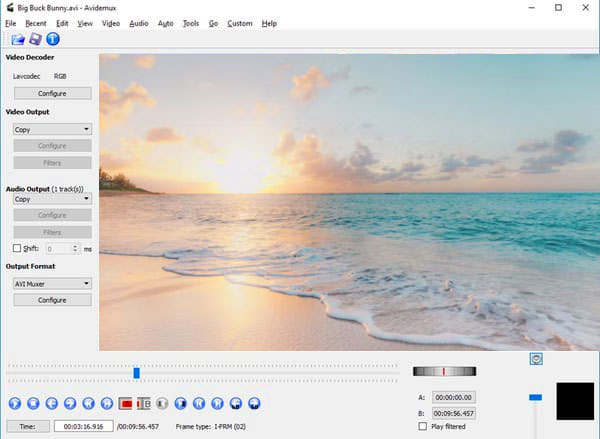
Supported input video formats: 3GP, ASF, AVI, FLV, H263, JPEG, MKV, MP4, MPEG, MPEG4, MPG and OGM.
Supported output video formats: AVI, FLV, M1V, M2V, MKV, MP4, MPEG, MPG, OGM and TS.
Part 2. Avidemux Official Site: Where can I download Avidemux?
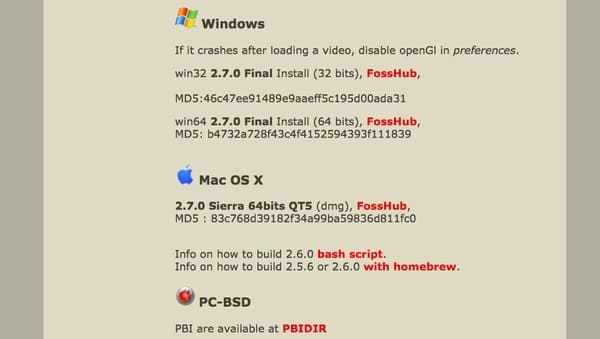
If you go to the official Avidemux website, there may not be a direct link to the Avidemux download package. Therefore, once you locate the section for a specific operating system, you won't be able to download it directly. To be more specific, you'll be directed to the FossHub website before downloading Avidemux. However, there are many versions of Avidemux Video Editor available here.
Additionally, you can also download Avidemux for Mac, Windows, or other versions from other download sites, such as Softonic ( https://avidemux.en.softonic.com/mac ), FileHippo ( https://filehippo.com/zh/download_avidemux/ ), UptoDown ( https://avidemux.en.uptodown.com/windows ), VideoHelp ( https://www.videohelp.com/software/AviDemux ), and more. Just find and download the latest version of Avidemux Video Editor you need for free.
Part 3. Avidemux Review: What People Think About Avidemux
Pros:
- Avidemux is widely accepted by almost all operating systems. Therefore, there are no incompatibility issues to worry about.
- It offers the most standard video processing features and some useful presets.
- You can get good coding options in a clear interface.
Cons:
- Avidemux does not provide a timeline.
- It lacks creative effects or transitions for professional customization.
- It needs additional codecs to handle unpopular video and audio files.
Well, you can still get help from many Avidemux members if you're having trouble using Avidemux, due to its long history. And Avidemux can meet most of your needs compared to other free video editing programs.
Part 4. Avidemux Tutorial: How to Use Avidemux to Trim/Join/Rotate/Convert Video
Step 1 Import video into Avidemux
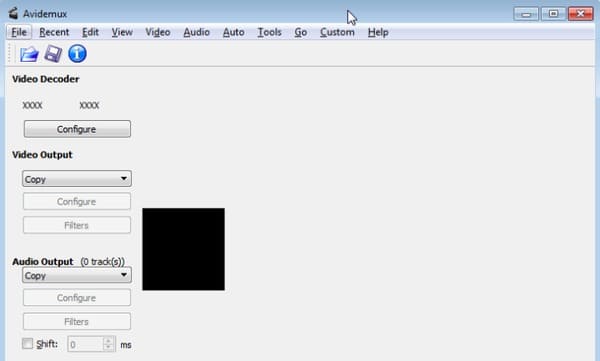
Download Avidemux on your computer. Launch Avidemux after installation. Then, click "Open" in the "File" drop-down menu. To start, make sure you're in "Copy" mode. This is a great way to save time by using your existing video instead of re-encoding your project into a new file.
Step 2 Trim the imported video
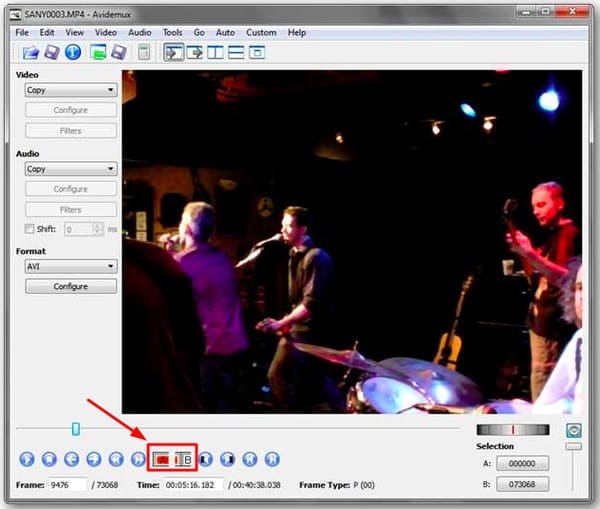
Locate the desired frame if you want to trim your video project. Find and click the icon with an "A" in the toolbar. Then, drag the slider gently to set the end time. Click the icon with the "B" to complete the process.
Step 3 Join video with Avidemux
Click "File" in the top toolbar. Choose "Append" from the list. Later, you may find that the total video length will increase. During this time, you can add video effects. Simply click "Filter" in the left panel. There are many filters available, including "Transform," "Interlace," "Color," and more.
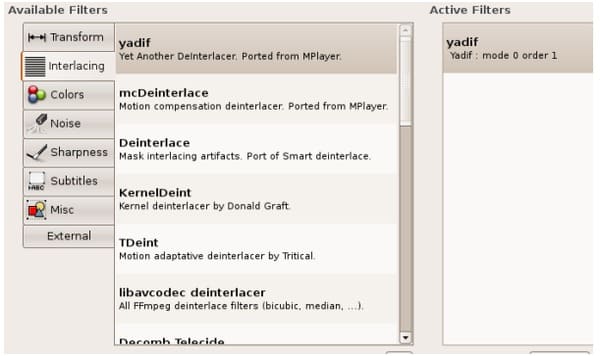
Step 4 Rotate Avidemux video
Well, head to Avidemux Video Filter Manager after clicking "Filter." Choose "Transform" and scroll down to click "Rotate" on the main interface. Configure how you want to rotate the video with Avidemux, then click "OK" and "Close" to exit the window.
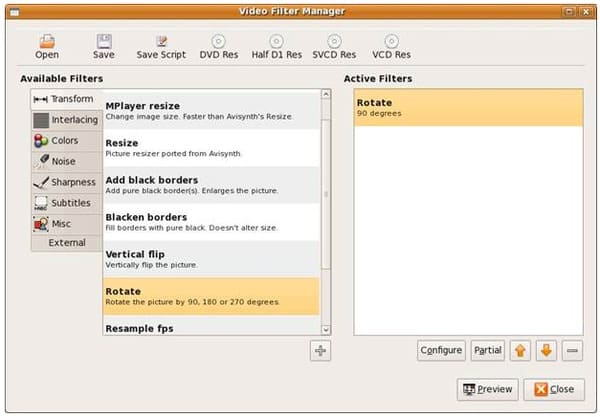
Step 5 Convert video using Avidemux
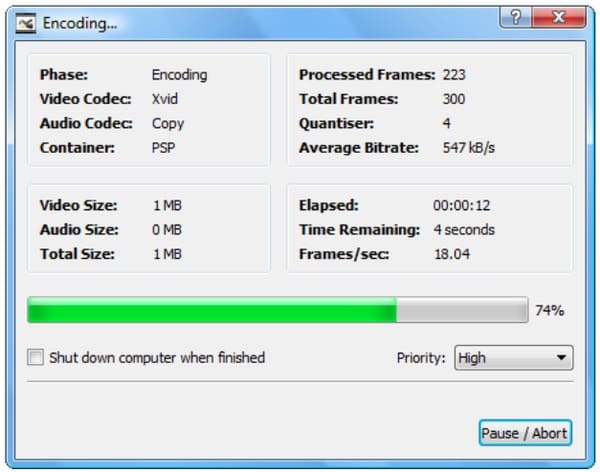
To export your video from Avidemux, you can click the down arrow under "Format" in the left panel. Choose the specific output format. Then click "Save" in the "File" drop-down menu. Select "Save Video..." from the submenu. Avidemux will quickly begin encoding your video.
Part 5. Avidemux Alternative - Professional Video Converter You Can Also Try
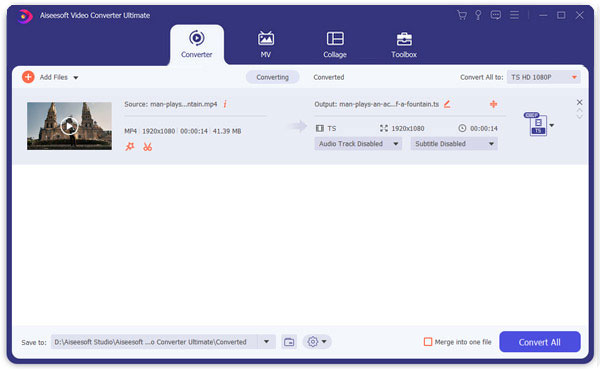
While Avidemux is an excellent video editor, it doesn't offer many professional editing tools. Fortunately, Aiseesoft Video Converter Ultimate is your only option. It allows you to convert, download, enhance, and edit videos and music quickly and easily.
0 comments:
Post a Comment