







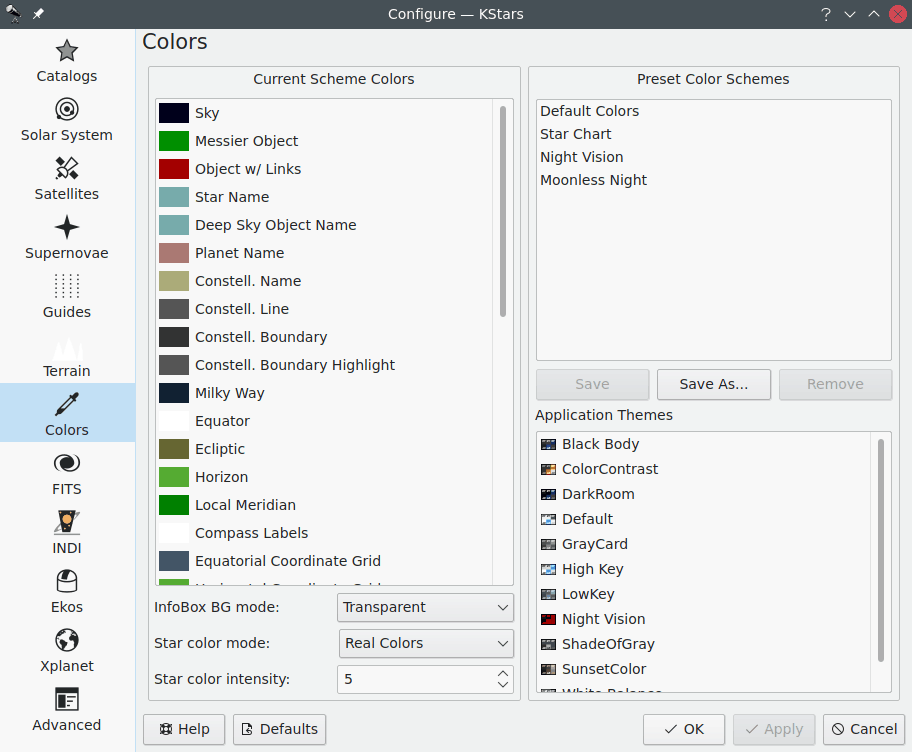
The Colors page allows you to set the color scheme, and to define custom color schemes. The tab is split into two panels:
The left panel shows a list of all display items with adjustable colors. Click on any item to bring up a color selection window to adjust its color. Below the list is the Star color mode: dropdown box. By default, KStars draws stars with a realistic color tint according to the spectral type of the star. However, you may also choose to draw the stars as solid white, black or red circles. If you are using the realistic star colors, you can set the saturation level of the star colors with the Star color intensity: spinbox.
The right panel lists the defined color schemes. There are four predefined schemes: the Default Colors scheme, Star Chart, which uses black stars on a white background, Night Vision, which uses only shades of red in order to protect dark-adapted vision, and Moonless Night, a more realistic, dark theme. Additionally, you can save the current color settings as a custom scheme by clicking the Save As... button. It will prompt you for a name for the new scheme, and then your scheme will appear in the list in all future KStars sessions. To remove a custom scheme, simply highlight it in the list, and press the Remove button.
FITS
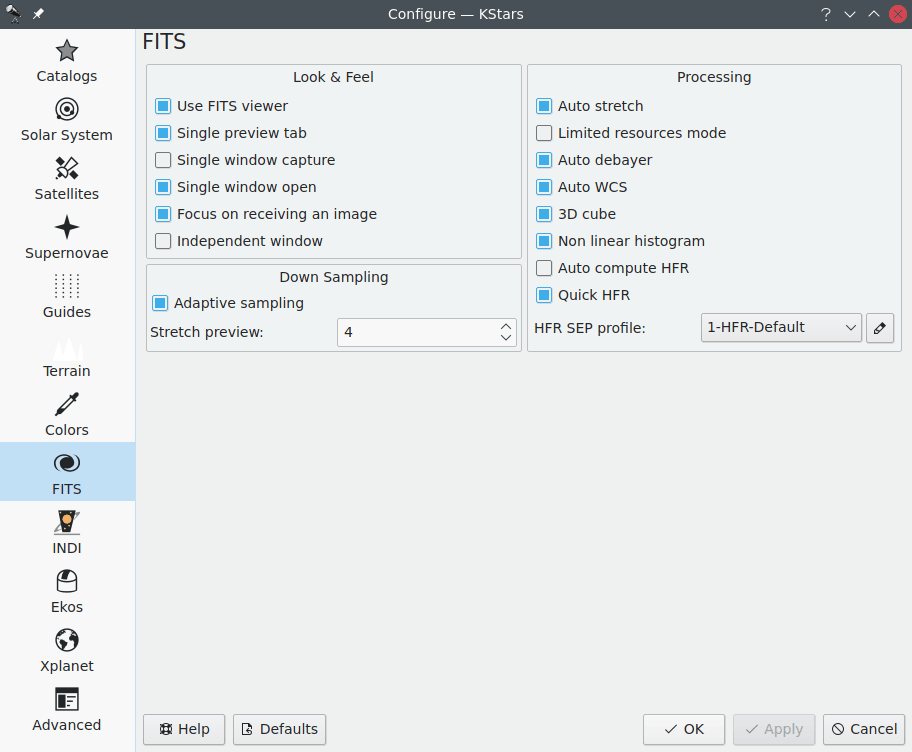
FITS (Flexible Image Transport System) is a popular open standard for storage, transmission and processing of digital data. For the details, one is referred to the corresponding Wikipedia article. This page allows you to configure presentation and processing of FITS data in KStars.
The left panel is for configuring FITS viewer itself.
Check the Use FITS viewer item if you want automatically display received images in the FITS Viewer.
The Single preview tab item is to display all captured FITS images in a single tab instead of multiple tabs per image. The Single window capture item is to display captured FITS images from all cameras in a single FITS Viewer window instead of a dedicated window to each camera. The Single window open item is to display opened FITS images in a single FITS Viewer window instead of a dedicated window to each file and the Independent window item is to make FITS Viewer window independent from KStars.
The right panel lists processing options. The Auto stretch item is to always apply auto stretch to images in FITS Viewer, Limited resources mode is to enable limited resource mode to turn off any resource-intensive operations, namely: Auto debayer (bayered images will not be debayered; only grayscale images are shown), Auto WCS (World Coordinate System data will not be processed; WCS maps sky coordinates to image coordinates; equatorial grid lines, object identification, and telescope slew within an image are disabled), and 3D cube (RGB images will not be processed; only grayscale images are shown). You can switch off some of these resource-greedy operations separately as well.
INDI
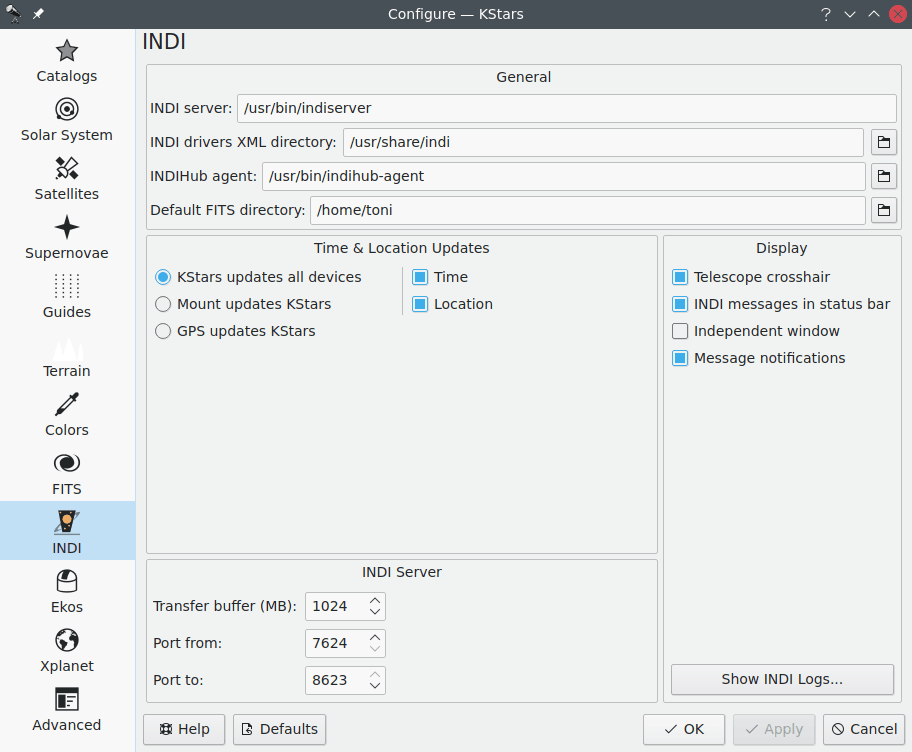
For detailed explanation of the options on the INDI page see the Configure INDI section.
Ekos
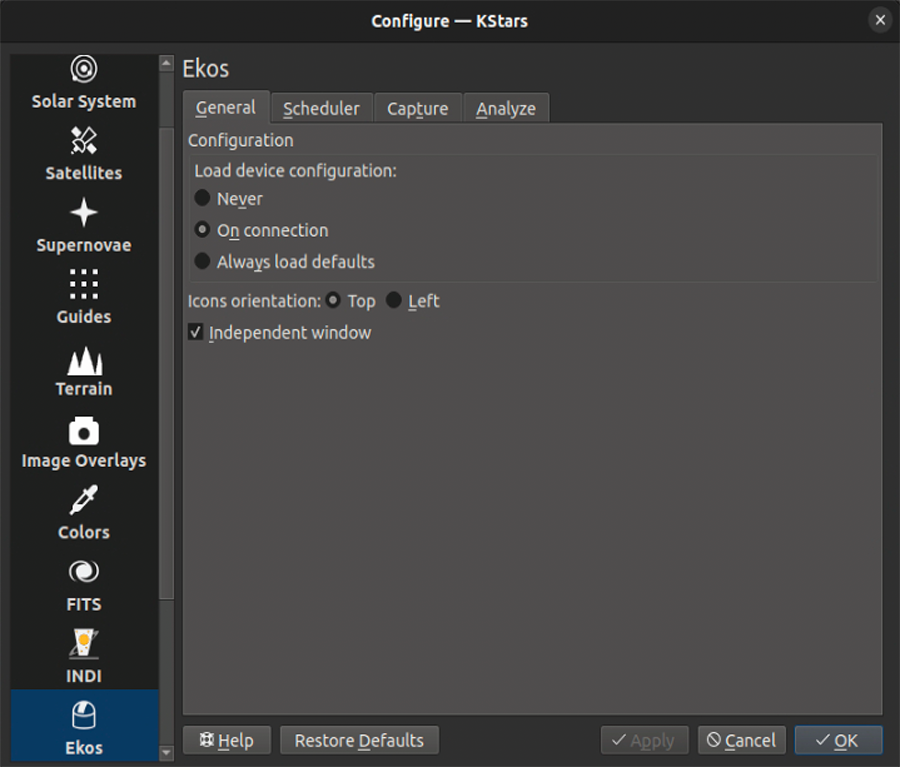
Ekos is an astrophotography suite, a complete astrophotography solution that can control all INDI devices including numerous telescopes, CCDs, DSLRs, focusers, filters, and a lot more. Ekos supports highly accurate tracking using online and offline astrometry solver, autofocus and autoguiding capabilities, and capture of single or multiple images using the powerful built in sequence manager. For detailed explanation of Ekos, see the Ekos section of this manual.
Xplanet
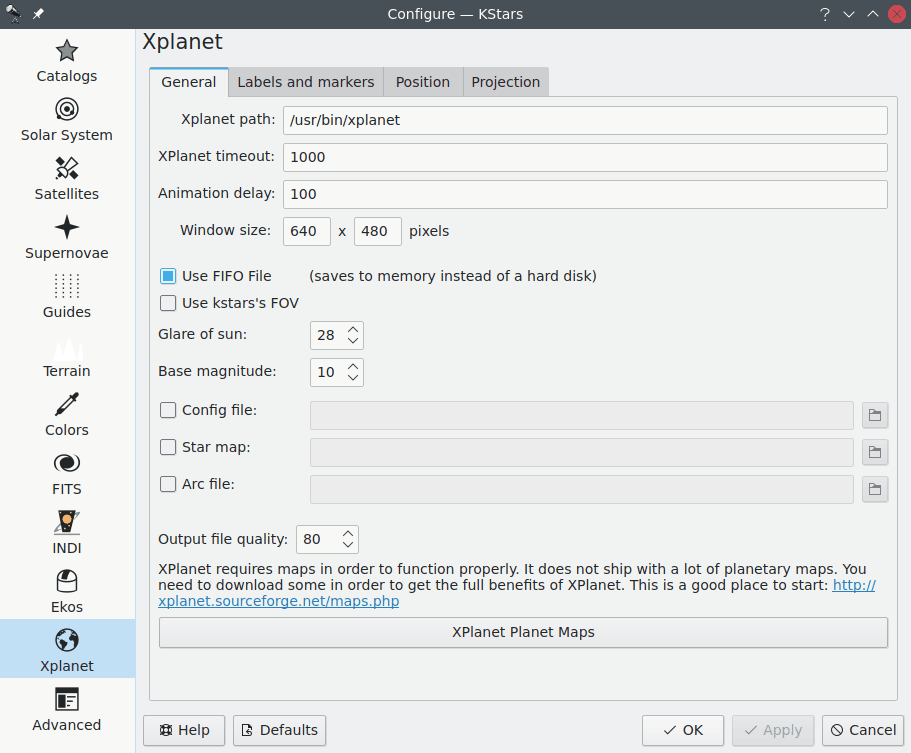
Xplanet (should be installed separately) is a solar system planet surface renderer. This page allows you to configure presentation and processing of Xplanet data in KStars.
0 comments:
Post a Comment