








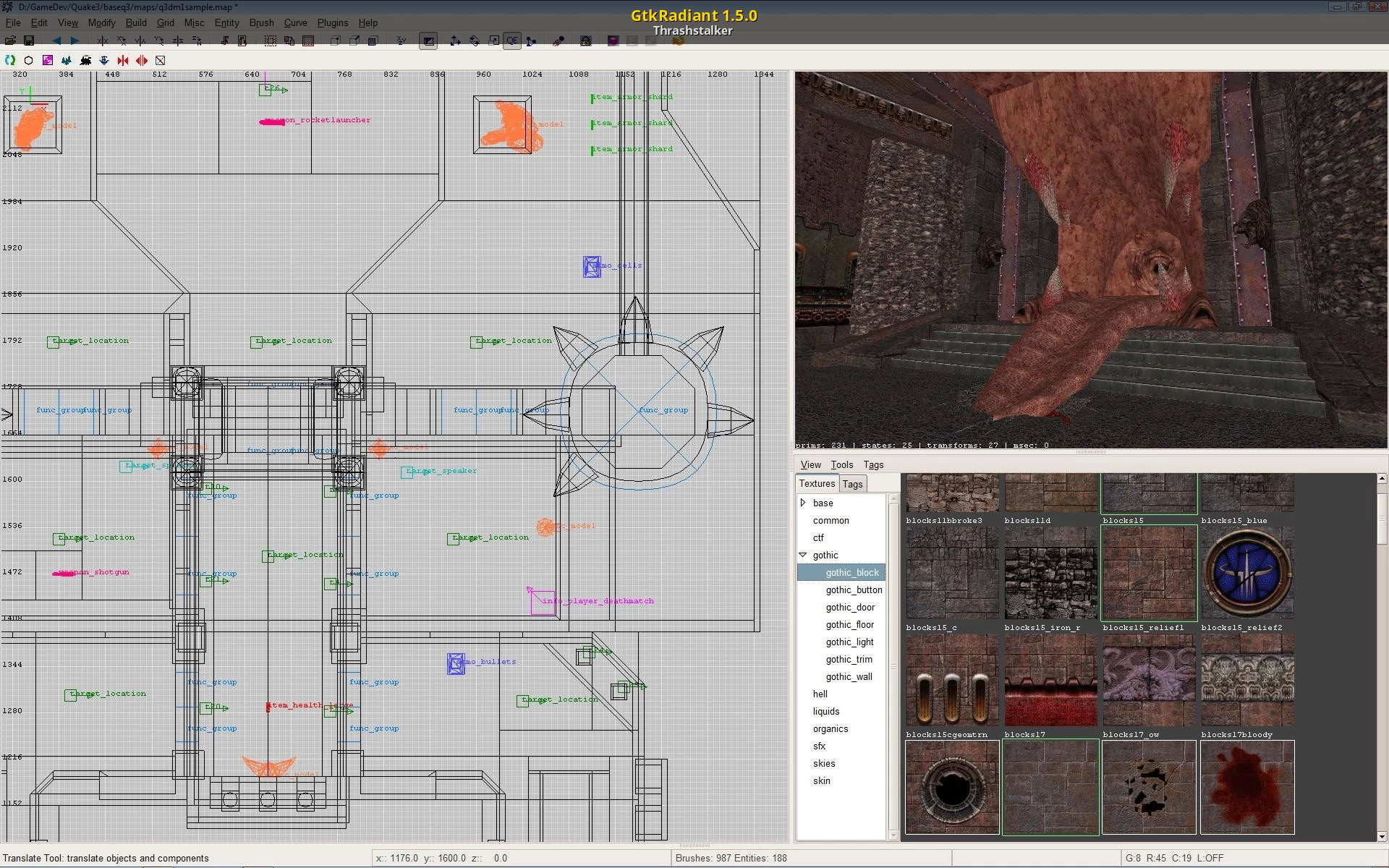
Curve Menu Commands
The next set of commands comes from the Curve Menu. Some are duplicated on the Patch Tool Bar.Cylinder
(Menu: Curve > Cylinder)
This creates the simplest cylinder. Cylinders are always drawn with their open ends facing up and down. It does not matter which map view is open when the cylinder is created.
More Cylinders:
(Menu: Curve > More Cylinders)
- Dense Cylinder
This is a cylinder with a set of extra rows. It allows a 180-degree bend into a half donut (half torus).
Very Dense Cylinder
This is a cylinder with two extra sets of rows. This allows a bend into a full donut (torus).
Square Cylinder
This is a cylinder whose columns have been adjusted so that a square, with flat sides, is formed.
End Cap
(Menu: Curve > Endcap)
This is a half cylinder.
Bevel
(Menu: Curve > Bevel)
This is a quarter cylinder
More End caps, Bevels:
(Menu: Curve > More End caps, Bevels)
Square Endcap
This is an endcap without the backside removed.
Square Bevel
This is a bevel with squared off back faces
Cone
(Menu: Curve > Cone)
A cone is a cylinder with control points drawn together and welded at one end to form a point.
Design Note: A curve patch sphere can be constructed from a cone. Start with a cubic brush. Convert into a cone. Go into edit vertexes mode and grab the control point at the peak of the cone. Pull it downward to half the height of the cone. Clone the resulting piece and flip it upside down.
Simple Patch Mesh…
(Menu: Curve > Simple Patch Mesh…)
The patch mesh is the basic building block use to create all curves. All the curve primitives are deformations of this item. For this to work, you must first create a brush of the dimension desired for the patch. Selecting this opens a Patch dialogue window. This lets you select the vertical (rows) and horizontal (columns) complexity of the patch. The more complexity means being able to perform more deformations on the patch. It also means adding a greater number of triangles that must be rendered.
Insert
(Menu: Curve > Insert)
Adding control points increases the complexity of a mesh. This action does not increase the physical size of a mesh. Additions are usually done before manipulating the patch mesh.
- Insert (2) Columns
This adds two columns of control points to the left edge of a patch.
Add (2) Columns
This adds two columns of control points to the right edge of a patch.
Insert (2) Rows
This adds two rows of control points to the lower edge of a patch.
Add (2) Rows
This adds two rows of control points to the upper edge of a patch.
Delete
(Menu: Curve > Delete)
Deleting control points reduces the complexity of a patch mesh. Be warned that the features created by the removed points are also removed. It does not make the mesh a less complex version of the former design. Deletions also change the dimensions of the mesh, removing the area created by the deleted control points. A mesh cannot be reduced smaller than a 3 column by 3 row complexity.
- First (2) Columns
This removes two columns of control points from the left edge of a patch.
Last (2) Columns
This removes two columns of control points from the right edge of a patch.
First (2) Rows
This removes two rows of control points from the lower edge of a patch.
Last (2) Rows
This removes two rows of control points from the upper edge of a patch.
Matrix
(Menu: Curve > Matrix)
This has nothing to do with Neo and Trinity. It's the patch mesh taken as a whole.
Invert
(Menu: Curve > Matrix > Invert)
(Shortcut: CTRL + I)
This command inverts the normals of the patch mesh. The normals control the direction of facing for the texture skin and the clipping surfaces.
Re-disperse
(Menu: Curve > Matrix > Re-disperse)
This is used on a selected patch. When rows or columns are inserted or added to a patch, the dimensions of the patch are not changed. The distances between the new additions and the old points are not the same. This command averages out the distance between the points. It does not change the size of the patch. WARNING! Only apply this BEFORE adjusting the patch. Otherwise, you may lose your work on it. With some patches, selecting this command will destroy the patch itself.
- Cols
(Menu: Curve > Matrix > Re-disperse > Cols)
(Shortcut: SHIFT + CTRL + E)
The distance between columns is averaged and evened out.
Rows
(Menu: Curve > Matrix > Re-disperse > Rows)
(Shortcut: CTRL + E)
The distance between rows is averaged and evened out.
Transpose
(Menu: Curve > Transpose)
(Shortcut: SHIFT + CTRL + M)
(Function undetermined)
Cap
(Menu: Curve > Cap)
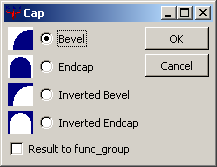
This command adds "cap" patches to the ends of the patch. The original brush and the caps are linked together as a func_group entity. A Patch Tool Bar button duplicates this command. The type of cap depends on the selected patch:
Cylinder
The ends of the cylinder are sealed with circular patches.
Square Cylinder
The ends of the cylinder are sealed with square patches.
Cone
Both ends are capped (open and point). You will want to discard the cap on the point end.
Bevel
If you select to cap a bevel, a dialogue window pops up. A normal bevel cap covers the space between the curve and the center.
Inverted Bevel
An inverted bevel covers the space between the curve and the outer corner.
Endcap
If you select to cap an endcap, the same dialogue window pops up.
Patch Mesh
The bevel/endcap window will pop up. Results will vary depending on the manipulations done to the mesh.
Square Bevel
Capped in the same manner as a cylinder
Square End Cap
Capped in the same manner as a cylinder
Cycle Cap Texture
(Shortcut: CTRL + SHIFT + N)
Press this repeatedly until the texture on the cap patch looks correct.
Redisperse Patch Points
This is used on a selected patch. When rows or columns are inserted or added to a patch, the dimensions of the whole patch are not automatically adjusted. The distances between the new additions and the old points are not the same. This command averages out the distance between the points.
WARNING: Only apply this BEFORE making adjustments to the patch, otherwise you may lose your work on it. With some patches, the patch itself will be destroyed.
CAP (put caps on the current patch)
This is used on a selected patch.
Design Notes:
- Endcaps: Don't cap endcaps with this tool. Make a pair of opposing bevel caps that match the arch of the endcap
Messed Up Texturing: If an inverted bevel endcap covers something other than an arc of a perfect circle, it is likely that the texture won't appear right when you apply the CAP function to the texture. Press SHIFT + CTRL + P a few times until it looks right.
Weld Equal Patch Points (welds equal patch points during moves)
(Patch Control Bar only) This feature, when selected (button pressed in) causes control points to weld together if they are moved to the same coordinates. Undo will undo the move and the weld.
Drill Down (selects drill down rows and columns)
When this is toggled on (depressed), clicking on a control point in a 2D Map view selects all the control points in the row or column beneath it.
Moving Patches
Moving Selected Curve Patch
These keys move the curve patch around the map in discrete map grid increments.
- Move Selection Down
(Shortcut: Keypad MINUS)
Each press moves the selected map component down along the Z-axis by one grid position (at current grid setting). Not affected by current 2D-map view.
Move Selection Up
(Shortcut: Keypad PLUS)
Each press moves the selected map component up along the Z-axis by one grid position (at current grid setting). Not affected by current 2D-map view.
Nudging the Curve Patch
These keys move the curve patch around the map in discrete map grid increments. The movement is in terms of the selected window, not in terms of XYZ coordinates.
- Nudge Down
(Shortcut: ALT + DOWN ARROW)
Each press moves the selected map component "down" the map view by one grid position (at the current grid setting). The movement is relative to the selected map view, not XYZ coordinates.
Nudge Up
(Shortcut: ALT + UP ARROW)
Each press moves the selected map component "up" the map view by one grid position (at the current grid setting). The movement is relative to the selected map view, not XYZ coordinates.
Nudge Left
(Shortcut: ALT + LEFT ARROW)
Each press moves the selected map component "left" the map view by one grid position (at the current grid setting). The movement is relative to the selected map view, not XYZ coordinates.
Nudge Right
(Shortcut: ALT + RIGHT ARROW)
Each press moves the selected map component "right" the map view by one grid position (at the current grid setting). The movement is relative to the selected map view, not XYZ coordinates.
Snap Selection To Grid
(Shortcut: CTRL + G)
If you are using the map grid to keep curve patches in alignment, this is a great tool. Rotated curve patches and curve patches that have had their vertices tweaked can have vertices that no longer lie on map grid intersections. This snaps the vertices to align with the grid. Be warned that snapping to large grids may be hazardous to the health of your curve patch (Snap and it's gone! But that's what UNDO is for).
0 comments:
Post a Comment