








The Profile Wizard is a handy tool to setup your equipment for the first time. It should popup automatically the first time you run KStars. Follow the guided instructions to setup your first equipment profile.
Greeting Page
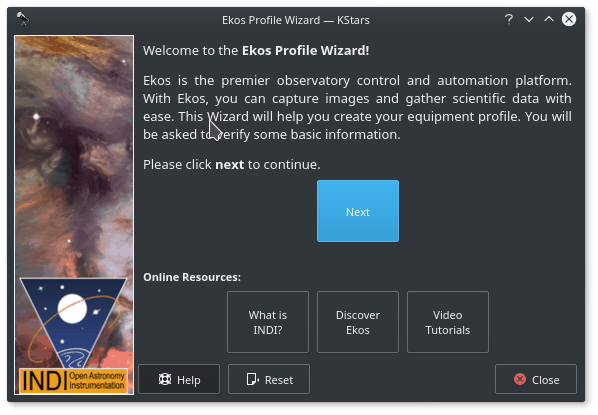
The first greeting screen contains some links to learn more about Ekos & INDI. Click
Nextto continue.
Equipment Location Page
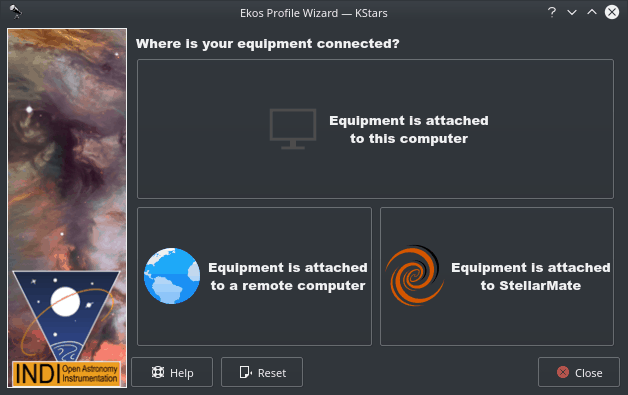
Next, you will be presented with the equipment location page. Your selection depends on where your equipment is connected to:
Equipment is attached to this device: Select this option if Ekos is running on your StellarMate (via HDMI or VNC), device (Windows®/Linux®) or Mac® OS.
Equipment is attached to a remote device: Select this option if Ekos is running on your device (Windows®/Linux®) or Mac® OS, and your equipment is connected to a remote computer.
Equipment is attached to StellarMate: Select this option if Ekos is running on your device (Windows®/Linux®) or Mac® OS, and your equipment is connected to StellarMate.
Click
Nextto continue.
- Remote Connection Page
-
In case selected the 2nd option in the last step, you shall be presented with the Remote Connect Page, here you will enter the hostname or IP address of the StellarMate unit. You can get the hostname from the StellarMate mobile App. Alternatively, you can construct the hostname from StellarMate HotSpot SSID. You should see the SSID when you search for WiFi networks nearby. For example, suppose the SSID is
stellarmate. The hostname should be stellarmate.local. That is, if you remove the underscore, and append .local, then you will get the unit hostname. You can always use the StellarMate App to change the unit default hostname to the name of your choice.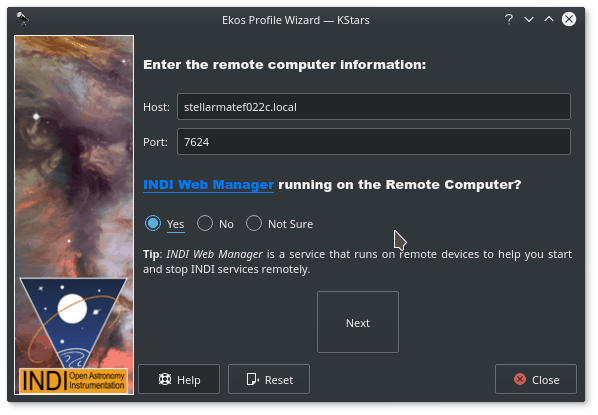
For the INDI Manager question, always select Yes since StellarMate Web Manager is running by default on the unit. Click
Nextto continue. - Profile Creation Page
-
Now you get to name your equipment profile. Afterwards select which guider application to use. The
Internal Guideris the only officially supported selection in StellarMate. You may opt to selectPHD2/LinGuiderbut the details are out of the scope of this documentation. If additional services are desired, check the ones you want to run.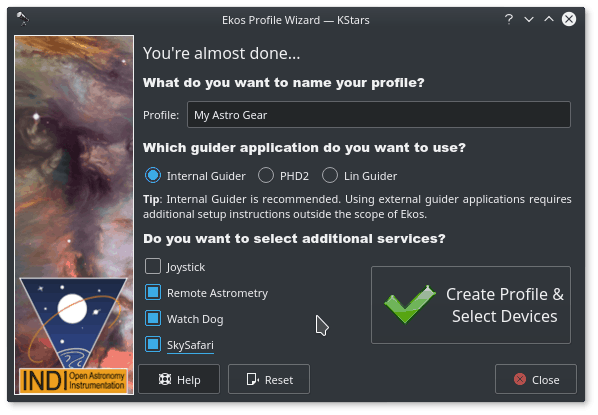
In the example above, we select Remote Astrometry, WatchDog, and SkySafari drivers. The detailed explanations for each is provided in the tooltip when you over them. Once done, click Create Profile button. You should now be presented with the Profile Editor.
Profile Editor
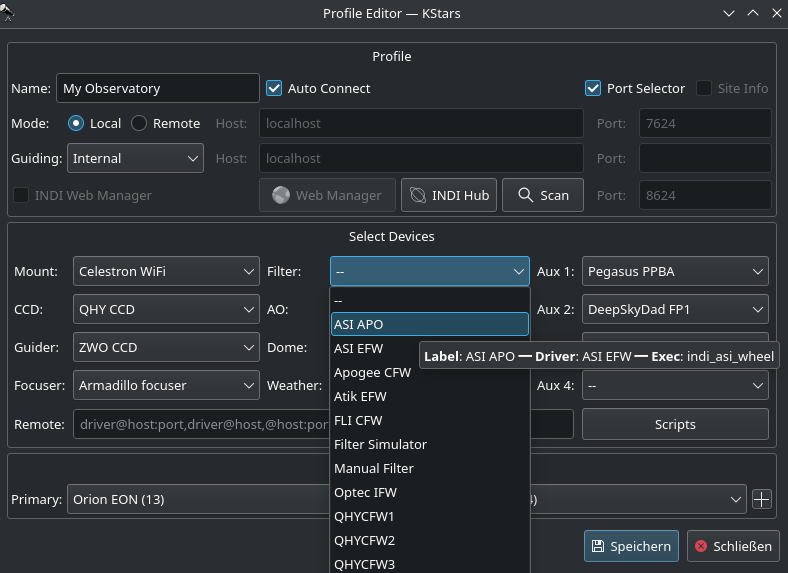
- Profiles
-
You can define profiles for your equipment and their connection mode using the
Profile Editor. Ekos comes pre-installed with theSimulatorsprofile which can be used to start simulator devices for demonstration purposes:-
Connection Mode: Ekos can be started either locally or remotely. Local mode is when Ekos is running in the same machine as INDI server, i.e. all the devices are connected directly to the machine. If you run INDI server on a remote machine (for example, on a Raspberry PI), you need to set the INDI server host and port. -
Auto Connect: Check this option to enable automatic connection to all your devices after INDI server is started. If unchecked, INDI devices are created but not automatically connected. This is useful when you want to make changes to the driver (e.g. change baud rate or IP address or any other settings) before you connect to it. -
Port Selector: Check this option to enable Port Selector. When creating a new profile, it is checked by default. Port Selector is used to select initial serial and network communication parameters for the devices in the equipment profile. After connecting to equipment for the first time, the Port Selector popup is displayed where the communication parameters can be set before establishing connection. Once connected, the Port Selector option is turned off. It can be toggled to checked in the profile editor to enable it back. -
Site Info: Optionally, you can check theSite Infocheckbox and Ekos will load the current city and timezone whenever is Ekos is started with this profile. This can be useful when connecting to the remote geographic site so that Ekos is in sync location and time wise. -
Guiding: Select which Guide application you want to use for guiding. By default, the Ekos internal Guide Module is utilized. External guiders include PHD2 and LinGuider. -
INDI Web Manager: StellarMate Web Manager is a web-based tool to start and stop INDI drivers. You should always check this option when connecting remotely to a StellarMate unit. -
Device Selection: Select your devices from each category. Please note that if you have a CCD with a guide head, you can leave the guider drop-down menu blank as Ekos will auto-detect the guide head from the CCD camera. Similarly, if your CCD includes embedded filter wheel support, then you do not need to specify the filter wheel device in the filter drop-down menu. -
Scripts: Adjust pre-driver and post-driver delays and scripts for each driver. A rule can be defined for each driver in case there is a need to introduce delays before and/or after starting a particular driver. The fields before the driver selection dropdown are to be executed before the driver is started, whereas the fields after the driver selection dropdown are to be executed after the driver started. The script field, if specified, should include the full path to an executable script with the appropriate permissions. All drivers configured in the scripts editor would be started first and in order before the rest of the equipment profile drivers.
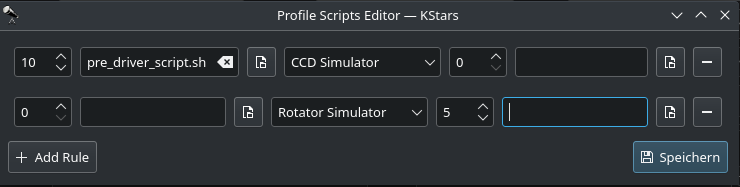
-
- Start & Stop INDI
-
Start and Stop INDI services. Once INDI server is established, INDI Control Panel will be displayed. Here you can change some driver options such as which port the device is connected to etc.
- Connect & Disconnect Devices
-
Connect to INDI server. Based on the devices connected, Ekos modules (CCD, Focus, Guide, etc.) will be established and available to use.
Once you are ready, click
Start INDIto establish INDI server and connection to your equipment. Ekos shall create the various module icons (Mount, Capture, Focus, etc.) as the connection is established witLogs
Logging is a very important tool in order to diagnose any issues with either INDI drivers or Ekos. Before submitting any support request, the log must be attached in order to help diagnose the exact issue. Depending on the exact problem, you may need to enable logging for the feature or drivers that exhibit issues. Enabling logging for everything is not recommended as it will produce too much data that would be useful to diagnose the issue and could result in missing the root cause all other. So only enable the necessary logs.
The following short video explains how to use the Logging feature to submit logs.
-
h the device.
0 comments:
Post a Comment